> ## Documentation Index
> Fetch the complete documentation index at: https://kb.micro1.ai/llms.txt
> Use this file to discover all available pages before exploring further.
# Edit a Job
> Forgot to add a detail to the job, or the JD changed? Don't worry, you can always edit it when needed.
To edit an existing job:
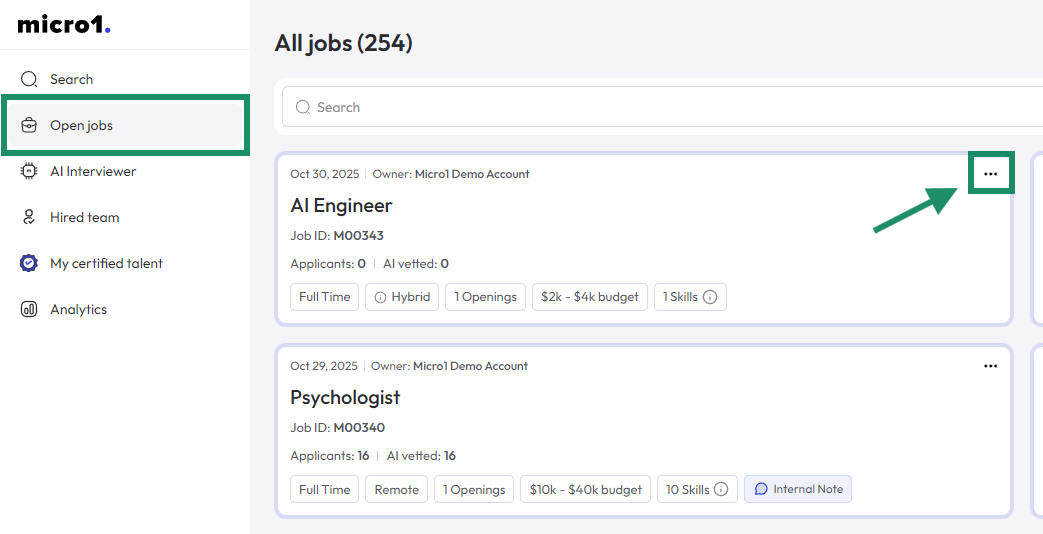
1. Click on [Open jobs](https://www.client.micro1.ai/jobs) in the left navigation bar.
2. Click on the **3 dots (...)** in the top right corner of the job.
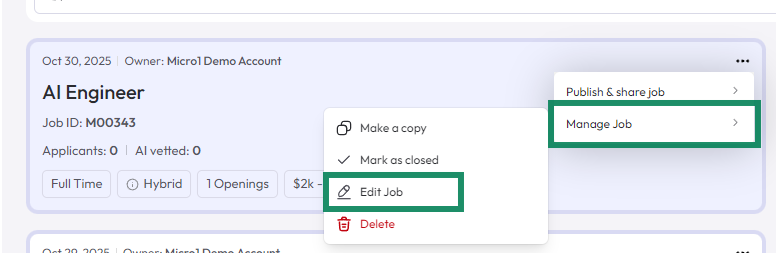
 3. Hover the mouse over the **Manage Job** option.
4. Click on **Edit Job**.
3. Hover the mouse over the **Manage Job** option.
4. Click on **Edit Job**.
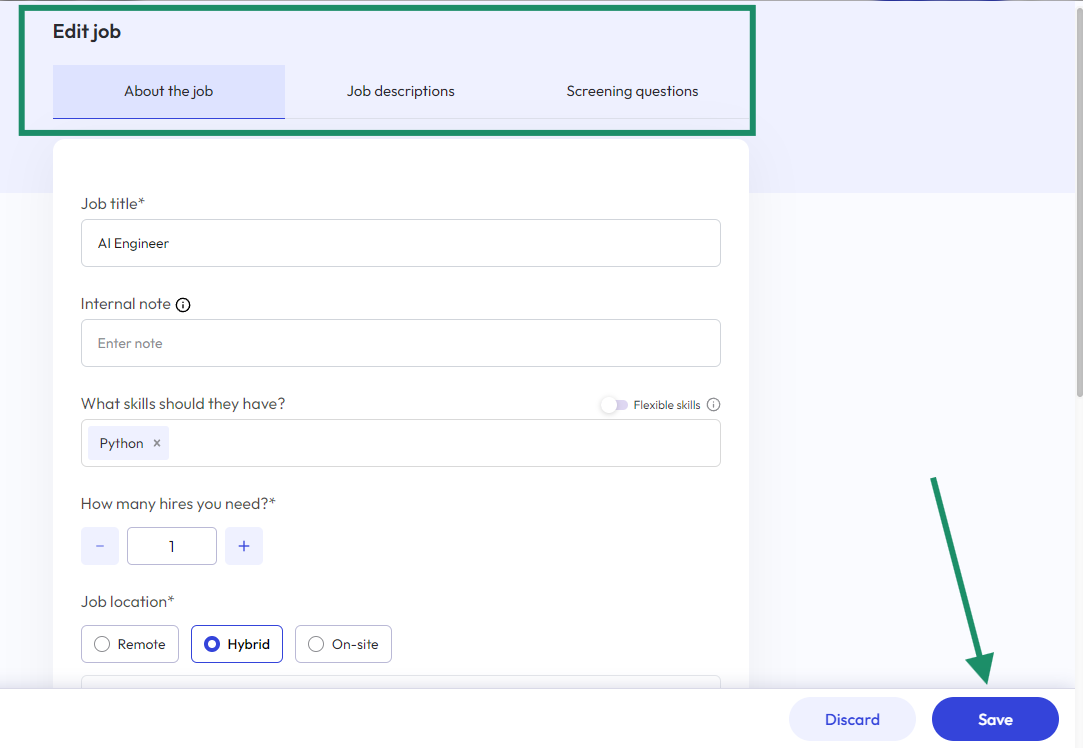
 You can edit 3 sections of a job. The "About", the Job Description, and the Screening Questions
5. Select which section you want to edit, change the content, and don't forget to click **Save** on the bottom right corner of the screen once you're done editing.
You can edit 3 sections of a job. The "About", the Job Description, and the Screening Questions
5. Select which section you want to edit, change the content, and don't forget to click **Save** on the bottom right corner of the screen once you're done editing.