> ## Documentation Index
> Fetch the complete documentation index at: https://kb.micro1.ai/llms.txt
> Use this file to discover all available pages before exploring further.
# Invite Applications to Interview
> How to invite candidates to take AI Interviews
There are multiple ways to invite candidates to take the AI Interview:
1. [Copy interview link and share it directly with the candidate](#copy-interview-link)
2. [Manually invite candidate through the job application](#manually-invite-candidates)
3. [Automatically invite all candidates that apply to the job](#automatically-invite-candidates)
4. [Upload a list of candidates](#upload-candidates)
### Copy Interview Link
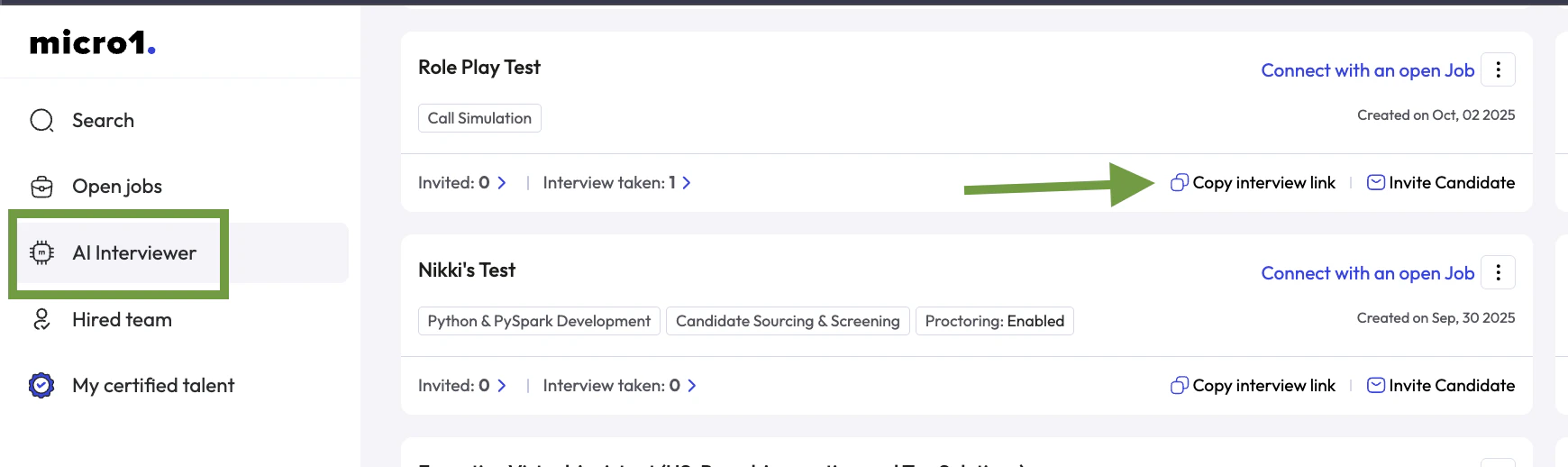
On the left side panel, click on the **AI Interviewer** tab
 ### Manually Invite Candidates
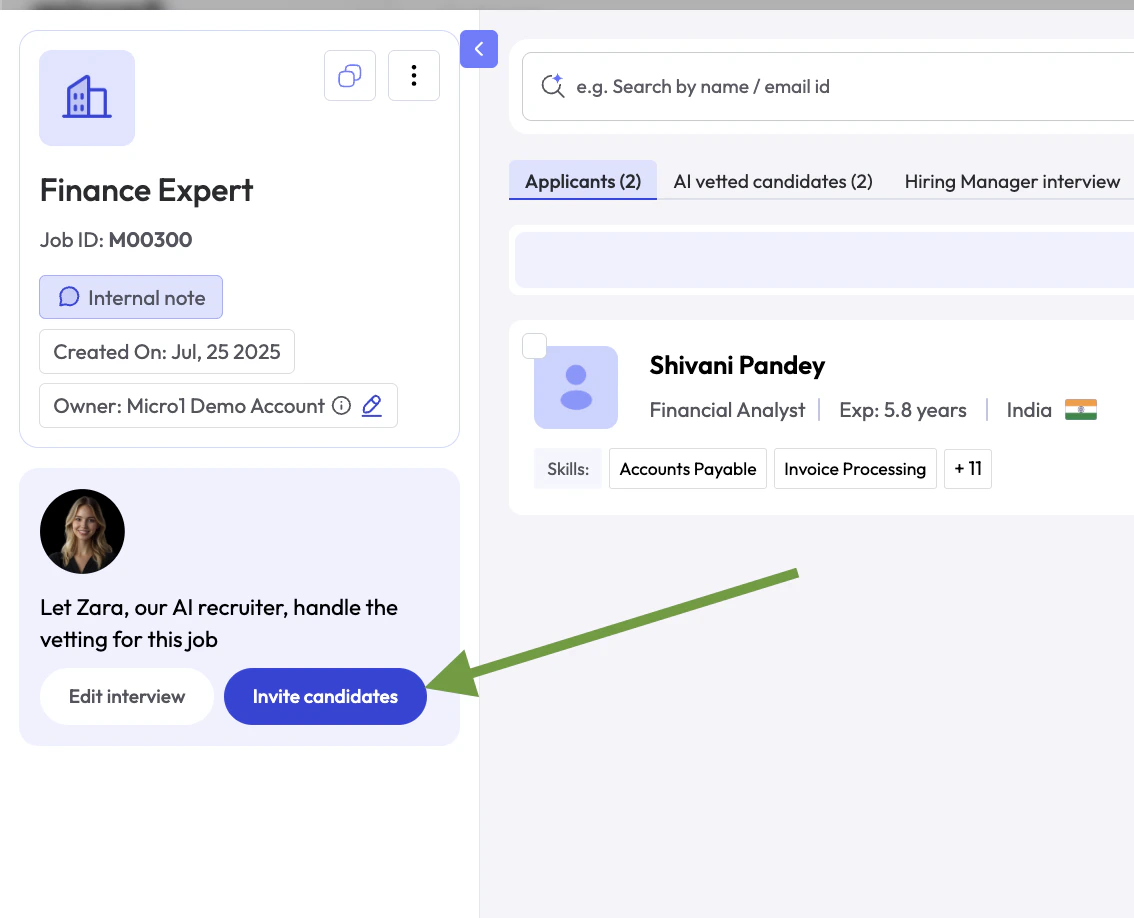
Open a job and click on the **Invite Candidates** blue button.
### Manually Invite Candidates
Open a job and click on the **Invite Candidates** blue button.
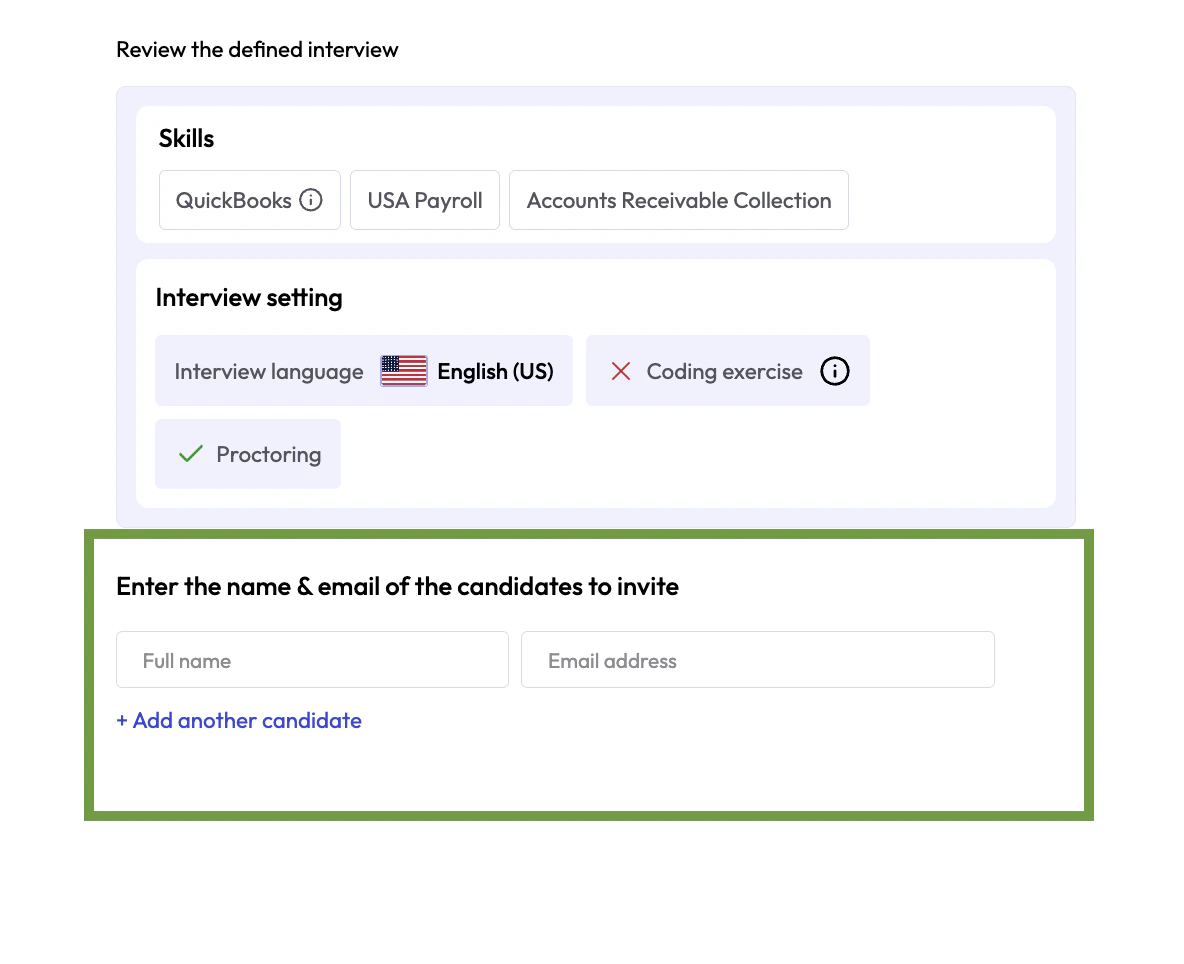
 You must add the name and email of the candidates you'd like to invite.
 ### Automatically Invite Candidates
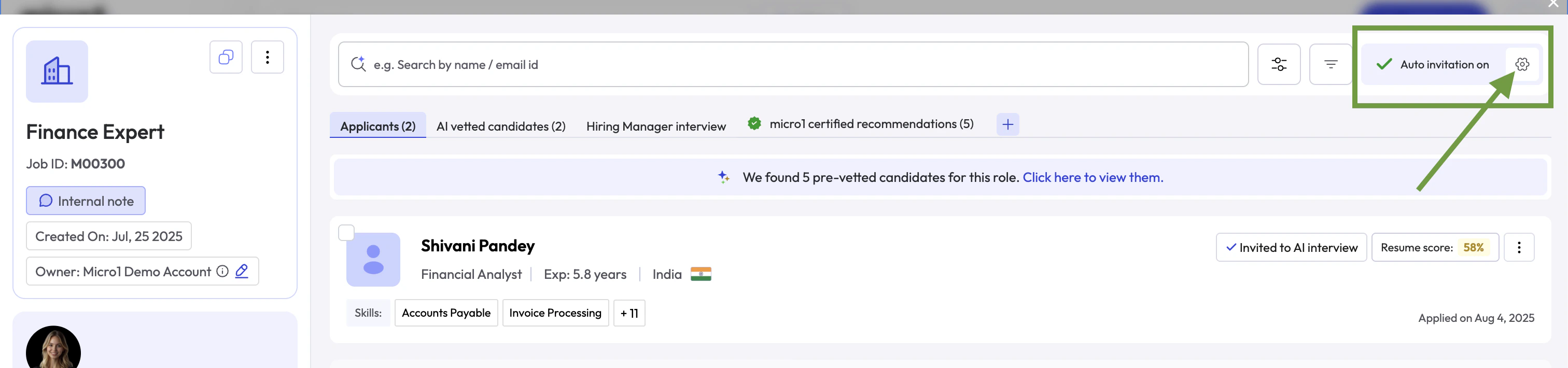
Once you create an invterview for a job, it will automatically toggle ON the **Auto-invitation Feature**, which means that every new candidate that applied for the job or gets manually uploaded will be automatically invited to take the interview.
### Automatically Invite Candidates
Once you create an invterview for a job, it will automatically toggle ON the **Auto-invitation Feature**, which means that every new candidate that applied for the job or gets manually uploaded will be automatically invited to take the interview.
 ### Upload Candidates
If you want to automatically invite all uploaded candidates, make sure to enable the [Auto-invitation Feature](#automatically-invite-candidates) before uploading.
Follow these steps to upload candidates in bulk via CSV:
1. In the [Jobs list](https://www.client.micro1.ai/jobs), click on the job where you want to upload candidates.
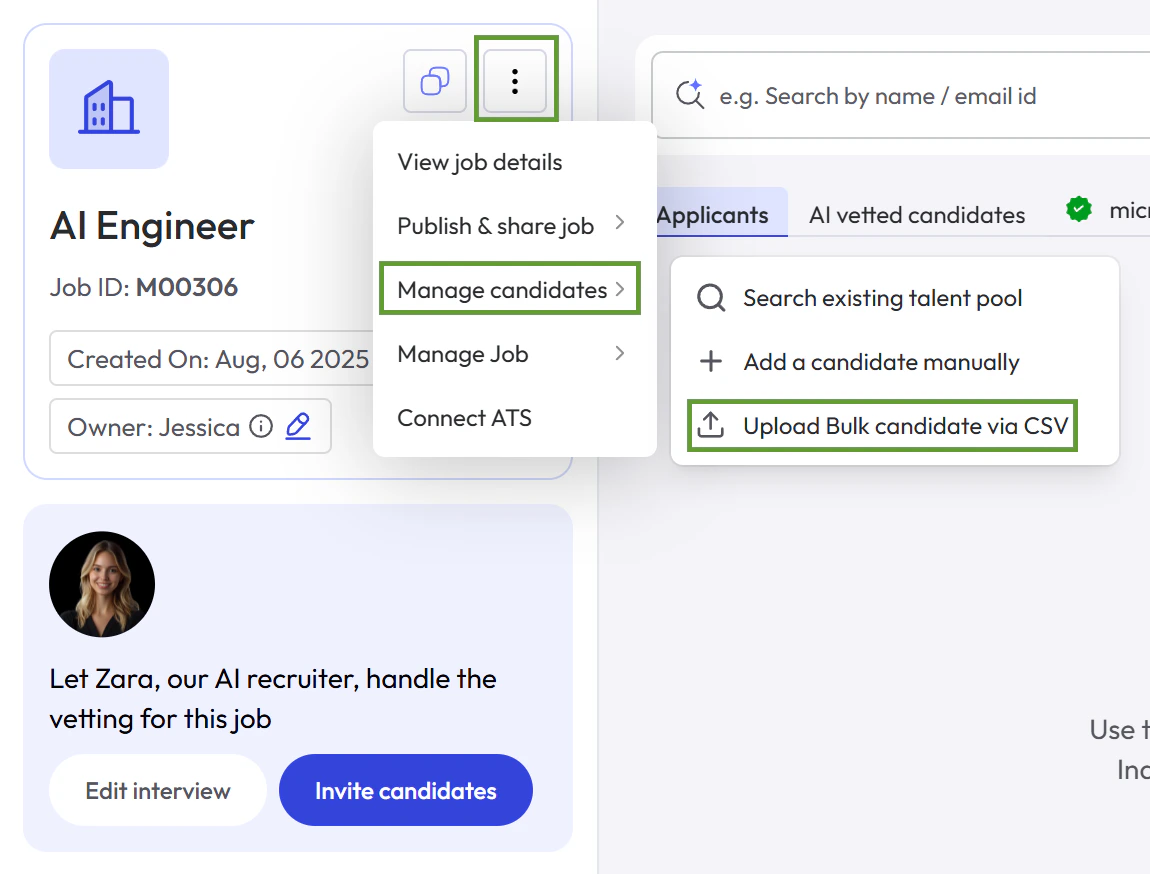
2. Click the **three dots** menu, select **Manage candidates**, then click **Upload Bulk Candidate via CSV**.
### Upload Candidates
If you want to automatically invite all uploaded candidates, make sure to enable the [Auto-invitation Feature](#automatically-invite-candidates) before uploading.
Follow these steps to upload candidates in bulk via CSV:
1. In the [Jobs list](https://www.client.micro1.ai/jobs), click on the job where you want to upload candidates.
2. Click the **three dots** menu, select **Manage candidates**, then click **Upload Bulk Candidate via CSV**.
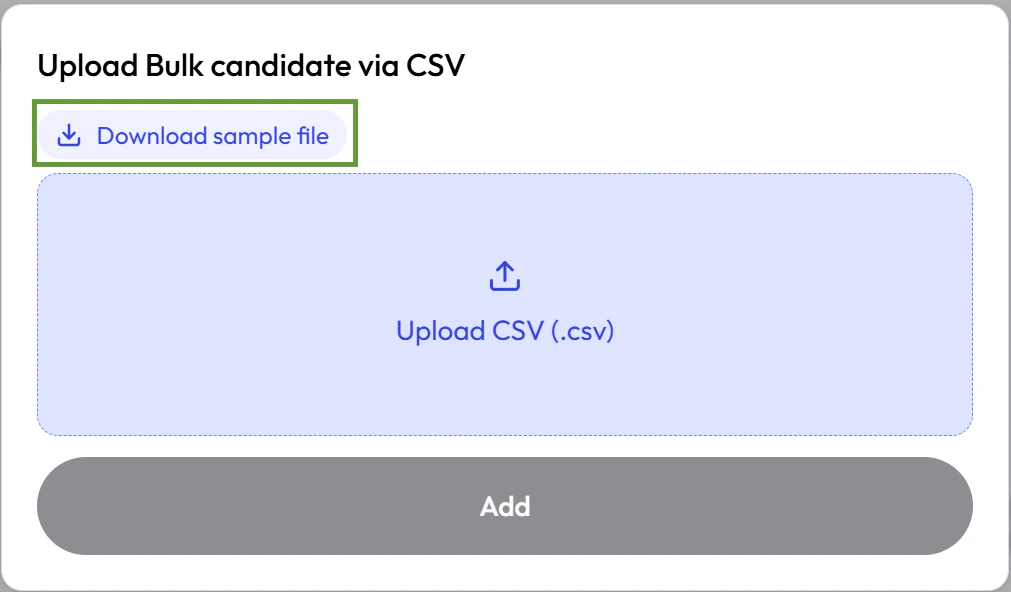
 3. Click **Download sample file** to get a template.
 4. Open the sample file and paste your candidate data, or ensure your CSV file matches the column names and order from the sample.
Only **First Name**, **Last Name**, and **Email** are required. All other fields are optional.
5. Click **Upload CSV (.csv)** and select your file.
6. Click **Add** to complete the upload.
4. Open the sample file and paste your candidate data, or ensure your CSV file matches the column names and order from the sample.
Only **First Name**, **Last Name**, and **Email** are required. All other fields are optional.
5. Click **Upload CSV (.csv)** and select your file.
6. Click **Add** to complete the upload.