> ## Documentation Index
> Fetch the complete documentation index at: https://kb.micro1.ai/llms.txt
> Use this file to discover all available pages before exploring further.
# Candidate Troubleshooting
> Accessing support and troubleshooting steps for candidates during or before the AI Interview
## Accessing Support During Your Interview
During AI interviews, any candidate can access **micro1 live support** by clicking the **“Having Trouble?”** button located in the **bottom-right corner** of the screen.
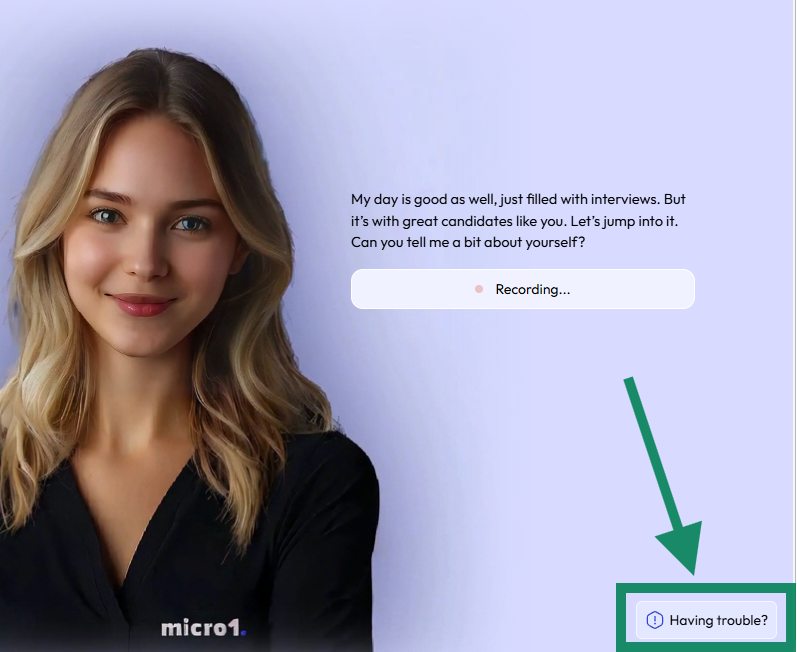 This menu provides quick troubleshooting options for common issues like camera, microphone, or connectivity problems.
***
## Before Starting the Interview
### ✅ Device & Browser Requirements
To ensure your interview runs smoothly, please follow these requirements:
| Requirement | Details |
| ----------------- | -------------------------------------------------------------- |
| **Device** | Laptop, Desktop, or Mobile (iOS/Android) |
| **Minimum Specs** | 8 GB RAM, 4 vCPU |
| **Internet** | Stable 4G connection or faster |
| **Browser** | Google Chrome (Safari also supported — use the latest version) |
| **Permissions** | Allow access to camera, microphone, and screen sharing |
We do **not** recommend using Incognito/Private mode or browsers such as **Firefox** or **Brave**.
🔗 **System Check:** [Run a quick configuration test](https://interview.micro1.ai/check-system/) before your interview to confirm everything is working properly.
***
### 🎯 Best Practices for a Good Interview
* Choose a **quiet, well-lit space** for your interview.
* **Close unnecessary apps or browser tabs** to free up system resources.
* **Read each question carefully** and speak clearly.
* Keep your **camera centered** and maintain eye contact for better communication.
***
## During the Interview
### 🆘 How to Use the “Having Trouble?” Button
If anything goes wrong during the interview:
1. Click the **“Having Trouble?”** button at the bottom-right corner.
2. Select the issue you’re facing (e.g., camera, microphone, connectivity).
3. Follow the on-screen guidance provided for that issue.
If the issue persists after trying the suggested fix, proceed to the next section.
***
## Need More Help?
If you’re still having trouble, please contact our support team via email:
📧 **[help@micro1.ai](mailto:help@micro1.ai)**
Please include the following details in your message:
* Your **full name**
* **Email address** used for the application
* The **role** you applied for
* A **short description or screenshot** of the issue
**Response Time:** Our support team will get back to you within **24 hours (Monday–Friday)**.\
Currently, support is provided **via email only**.
Providing screenshots and browser details helps our support team resolve your issue faster.
This menu provides quick troubleshooting options for common issues like camera, microphone, or connectivity problems.
***
## Before Starting the Interview
### ✅ Device & Browser Requirements
To ensure your interview runs smoothly, please follow these requirements:
| Requirement | Details |
| ----------------- | -------------------------------------------------------------- |
| **Device** | Laptop, Desktop, or Mobile (iOS/Android) |
| **Minimum Specs** | 8 GB RAM, 4 vCPU |
| **Internet** | Stable 4G connection or faster |
| **Browser** | Google Chrome (Safari also supported — use the latest version) |
| **Permissions** | Allow access to camera, microphone, and screen sharing |
We do **not** recommend using Incognito/Private mode or browsers such as **Firefox** or **Brave**.
🔗 **System Check:** [Run a quick configuration test](https://interview.micro1.ai/check-system/) before your interview to confirm everything is working properly.
***
### 🎯 Best Practices for a Good Interview
* Choose a **quiet, well-lit space** for your interview.
* **Close unnecessary apps or browser tabs** to free up system resources.
* **Read each question carefully** and speak clearly.
* Keep your **camera centered** and maintain eye contact for better communication.
***
## During the Interview
### 🆘 How to Use the “Having Trouble?” Button
If anything goes wrong during the interview:
1. Click the **“Having Trouble?”** button at the bottom-right corner.
2. Select the issue you’re facing (e.g., camera, microphone, connectivity).
3. Follow the on-screen guidance provided for that issue.
If the issue persists after trying the suggested fix, proceed to the next section.
***
## Need More Help?
If you’re still having trouble, please contact our support team via email:
📧 **[help@micro1.ai](mailto:help@micro1.ai)**
Please include the following details in your message:
* Your **full name**
* **Email address** used for the application
* The **role** you applied for
* A **short description or screenshot** of the issue
**Response Time:** Our support team will get back to you within **24 hours (Monday–Friday)**.\
Currently, support is provided **via email only**.
Providing screenshots and browser details helps our support team resolve your issue faster.