

Add a new stage
To add a new stage, click on the + button in the top section of the page, where the other stages are listed.- Click on the + button in the top section of the page.
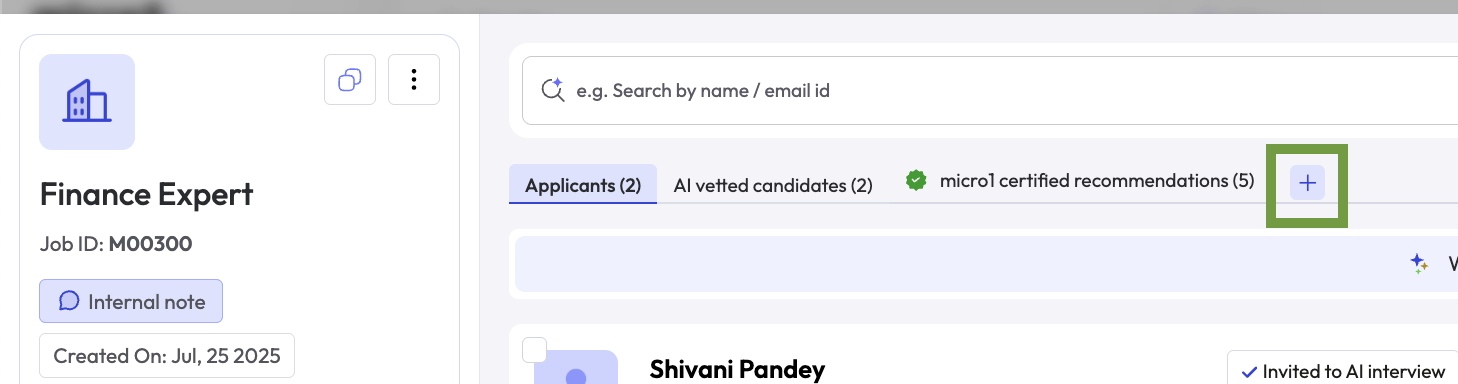
- Fill the stage name and click Next.
- Optionally, you can set up an email automation to send an email to the candidate when they are moved to this stage.
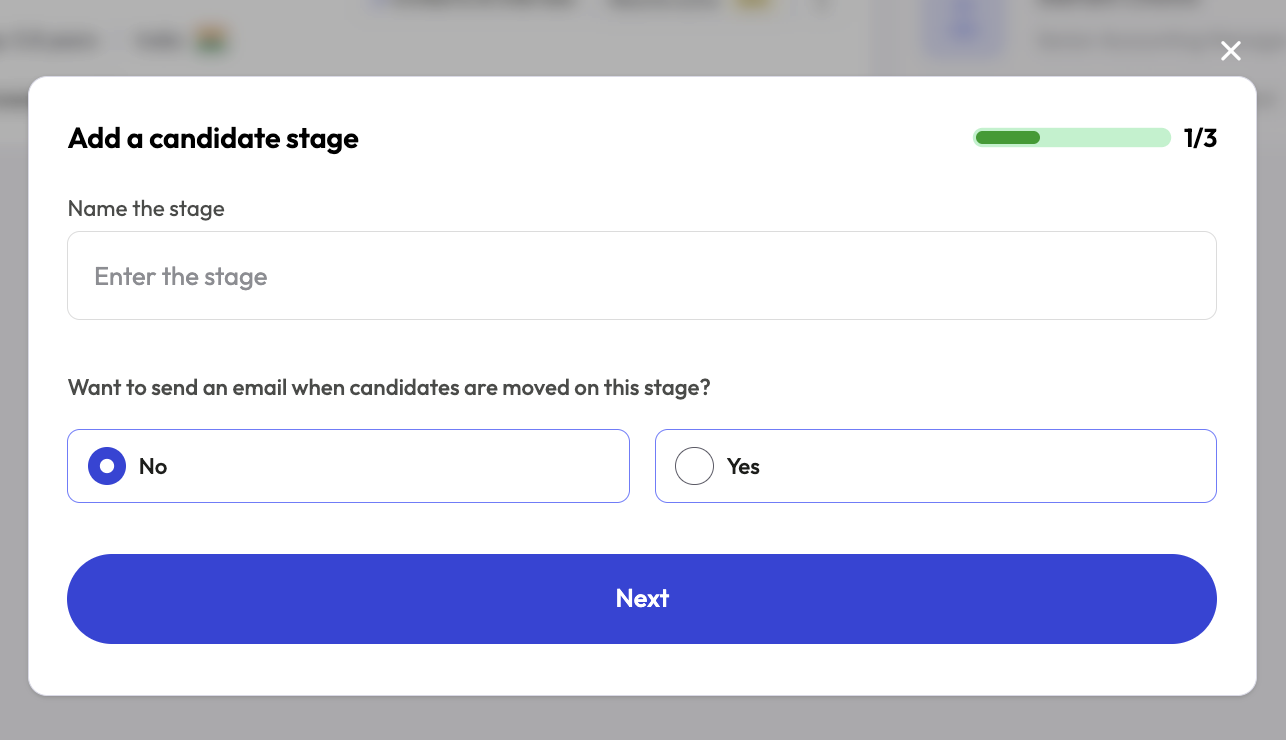
- Click Next.
- Optionally, if you have an ATS integration set up, you can choose to send the candidate data back to the ATS if they’re moved to this stage. By default, this option is disabled.
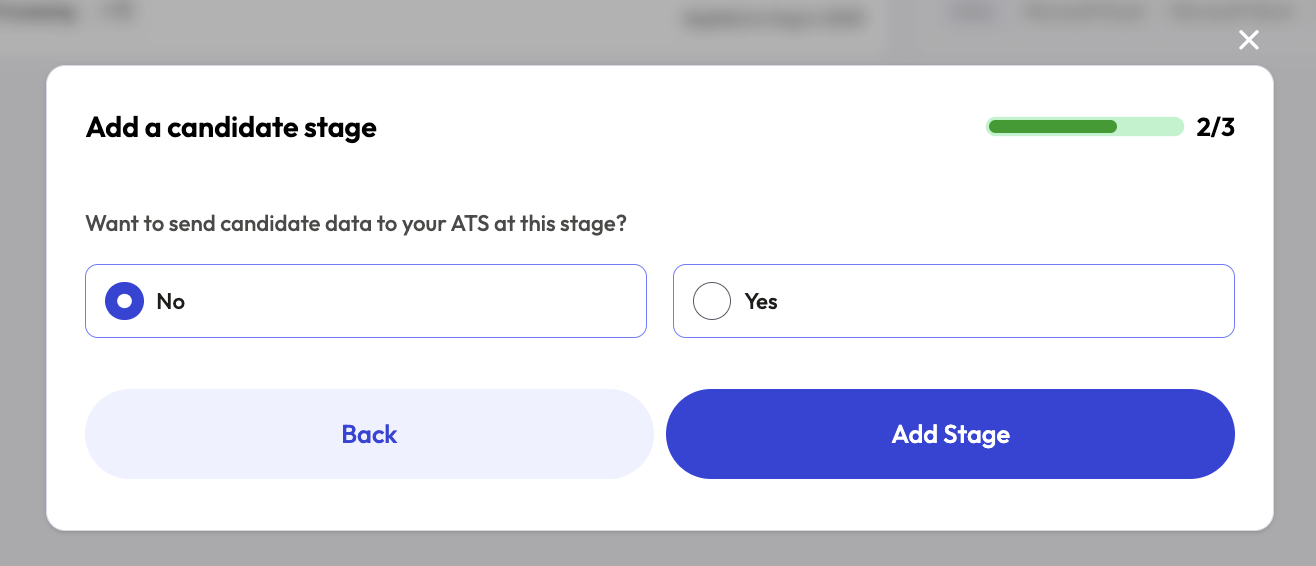
- Click on Add Stage to finalize the process.
Edit or Delete a stage
To edit or Delete a stage, click on the stage and you will see an Edit and a Delete buttons in the top center of the page.